Support & safety
Report an issue or contact WisePick
Get help with an account, payment or incorrect vacancy.
For: Everyone
Start here: Contact us
Website footer → Contact us, or Help Centre → Contact support
Each section below names the page or dialog to use. Move to the next page only when the instructions say to.
Step-by-step instructions
Page / dialog · Steps 1–4
Contact us
Where to go: Website footer → Contact us, or Help Centre → Contact support
Open Contact us →- Step 1.
Open Contact us from the footer or Help & support in your workspace.
- Step 2.
Enter your contact details and choose a suitable topic.
- Step 3.
Explain what you were doing and include the job ID or page address if relevant.
- Step 4.
Submit the request and watch for a reply to your contact address.
Relevant page screenshot
Example page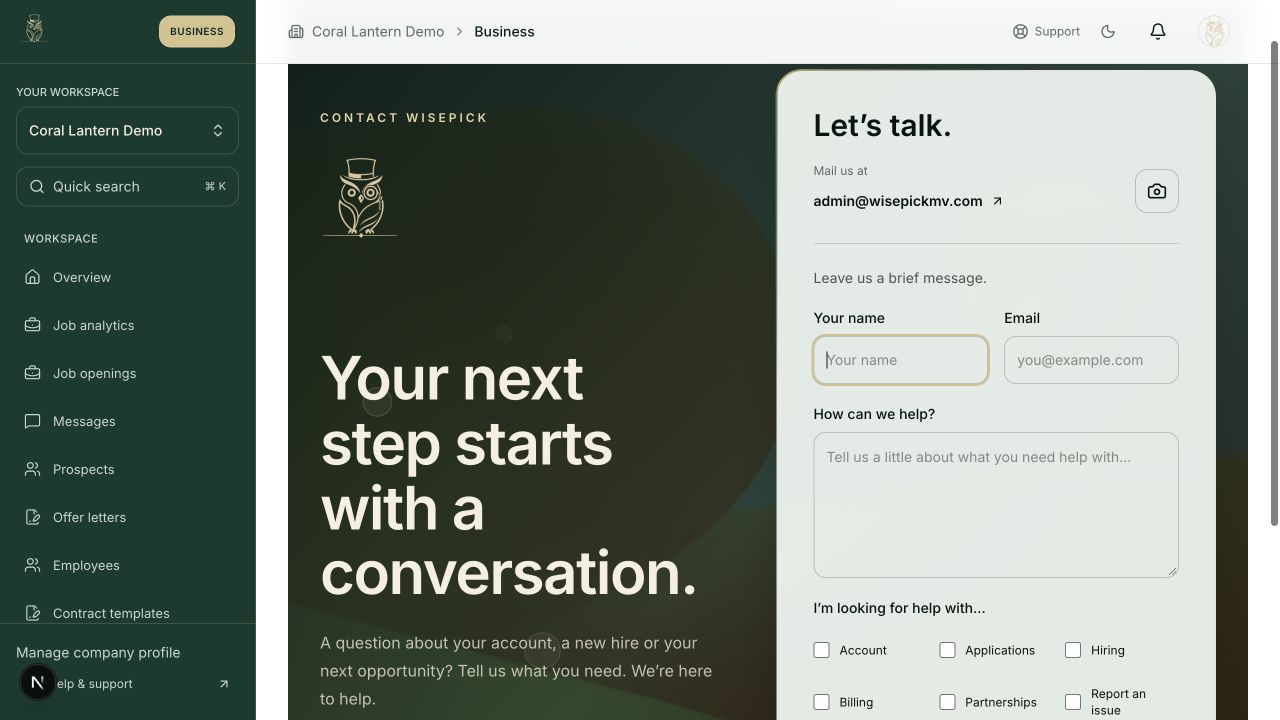
Contact us
Steps 1, 2, 3, 4 in this section. Where to find it: Website footer → Contact us, or Help Centre → Contact support. This is an example of this page, not an additional task. Use the written instructions for the exact controls and the current details in your account.
This screenshot illustrates the named page and steps above. Example names and values may differ from your account. Follow the written instructions, especially for payments.
Screenshot 1 of 1: Contact us
Good to know
Do not send your password, verification code or full bank-card details. You can also email admin@wisepickmv.com.