Account & security
Switch between your accounts
Change to another account you previously signed in to on this device.
For: Signed-in account
Start here: Your workspace account menu
Side menu → Your workspace → Select the account name
Each section below names the page or dialog to use. Move to the next page only when the instructions say to.
Step-by-step instructions
Page / dialog · Steps 1–2
Your workspace account menu
Where to go: Side menu → Your workspace → Select the account name
- Step 1.
Open Your workspace at the top of the side menu.
- Step 2.
Choose a saved account from the account list.
Relevant page screenshot
Example page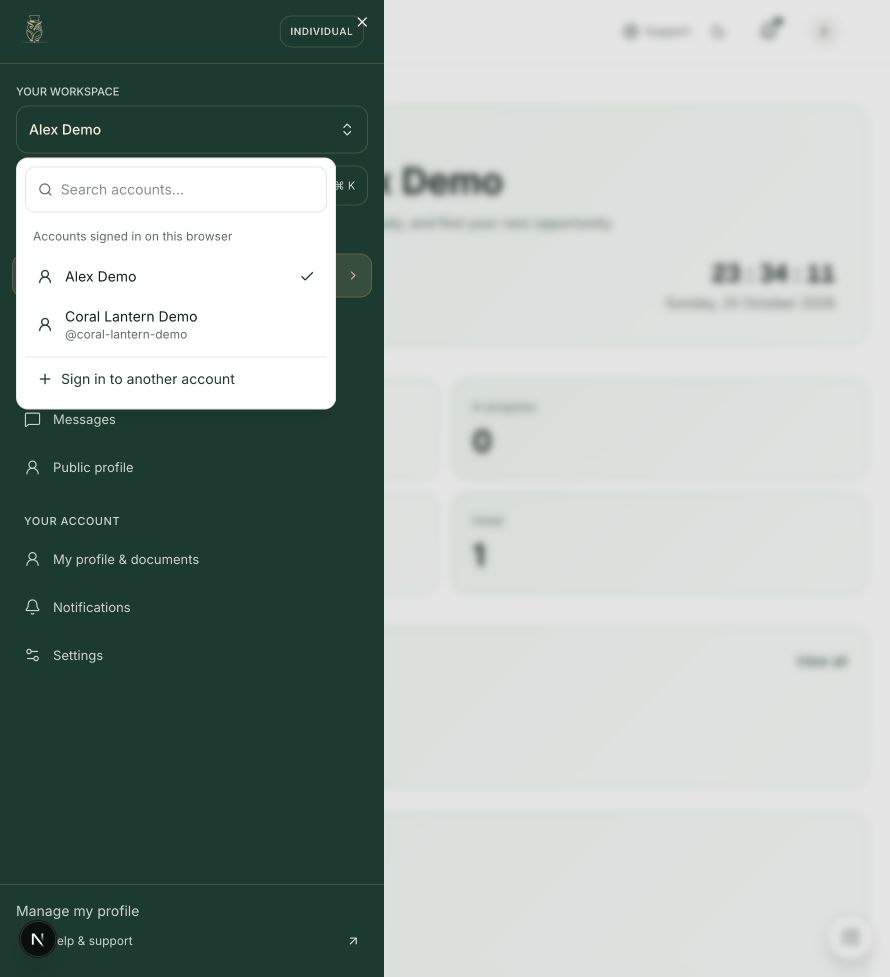
Your workspace account menu
Steps 1, 2 in this section. Where to find it: Side menu → Your workspace → Select the account name. This is an example of this page, not an additional task. Use the written instructions for the exact controls and the current details in your account.
This screenshot illustrates the named page and steps above. Example names and values may differ from your account. Follow the written instructions, especially for payments.
Screenshot 1 of 1: Your workspace account menu
Page / dialog · Step 3
Login
Where to go: Public website → Log in
Open Login →- Step 3.
If it is not listed, choose Sign in to another account. On the Login page, sign in to that account.
Page / dialog · Step 4
Your workspace account menu
Where to go: Side menu → Your workspace → Select the account name
- Step 4.
Check the workspace name after switching.
Page / dialog · Steps 5–6
Settings → Saved accounts
Where to go: Side menu → Settings → Saved accounts
Open Saved accounts →- Step 5.
Saved accounts remain listed after logout. If a session has expired, sign in again to reconnect it.
- Step 6.
To remove a saved account, open Settings, find Saved accounts and select Remove beside that account. This removes the saved link; it does not delete the account.
Good to know
Only your own authenticated accounts appear. Switching accounts does not give access to someone else’s company.