Business workspace
Add workplace and team pictures
Show candidates what working with your team can look like.
For: Business account
Start here: Business profile
Business side menu → Business profile
Each section below names the page or dialog to use. Move to the next page only when the instructions say to.
Step-by-step instructions
Page / dialog · Steps 1–4
Business profile
Where to go: Business side menu → Business profile
Open Business profile →- Step 1.
Open Business profile.
- Step 2.
Find the cover, workplace or gallery upload controls.
- Step 3.
Choose suitable office or team images from your device.
- Step 4.
Wait for uploads to finish and save the profile.
Relevant page screenshot
Example page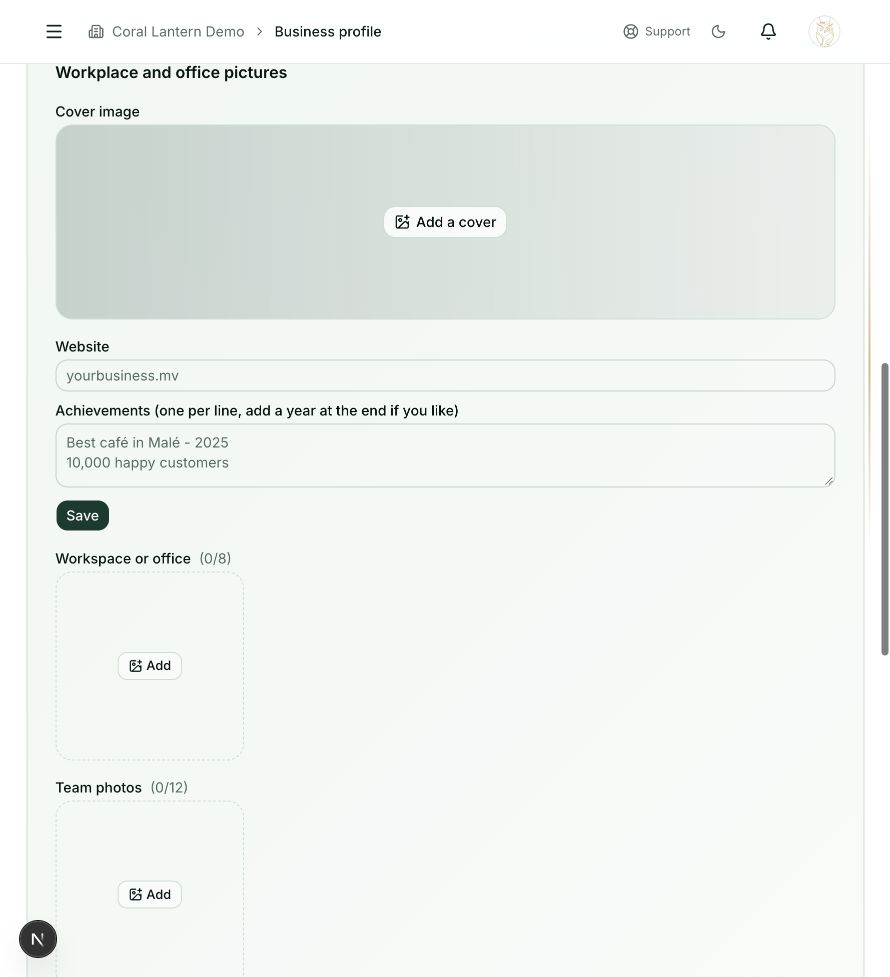
Business profile
Steps 1, 2, 3, 4 in this section. Where to find it: Business side menu → Business profile. This is an example of this page, not an additional task. Use the written instructions for the exact controls and the current details in your account.
This screenshot illustrates the named page and steps above. Example names and values may differ from your account. Follow the written instructions, especially for payments.
Screenshot 1 of 1: Business profile
Page / dialog · Step 5
Company public profile
Where to go: Business side menu → Public profile
- Step 5.
Open Public profile to check the order and appearance of the pictures.
Good to know
Use images you have permission to publish. Avoid photos containing private documents or personal information.