Billing & plans
View invoices and payment status
Find current and previous invoices and their uploaded receipts.
For: Business account
Start here: Billing & plans
Business side menu → Billing & plans
Each section below names the page or dialog to use. Move to the next page only when the instructions say to.
Step-by-step instructions
Page / dialog · Steps 1–2
Billing & plans
Where to go: Business side menu → Billing & plans
Open Billing & plans →- Step 1.
Open Billing & plans.
- Step 2.
Scroll to Invoices & payments.
Relevant page screenshot
Example page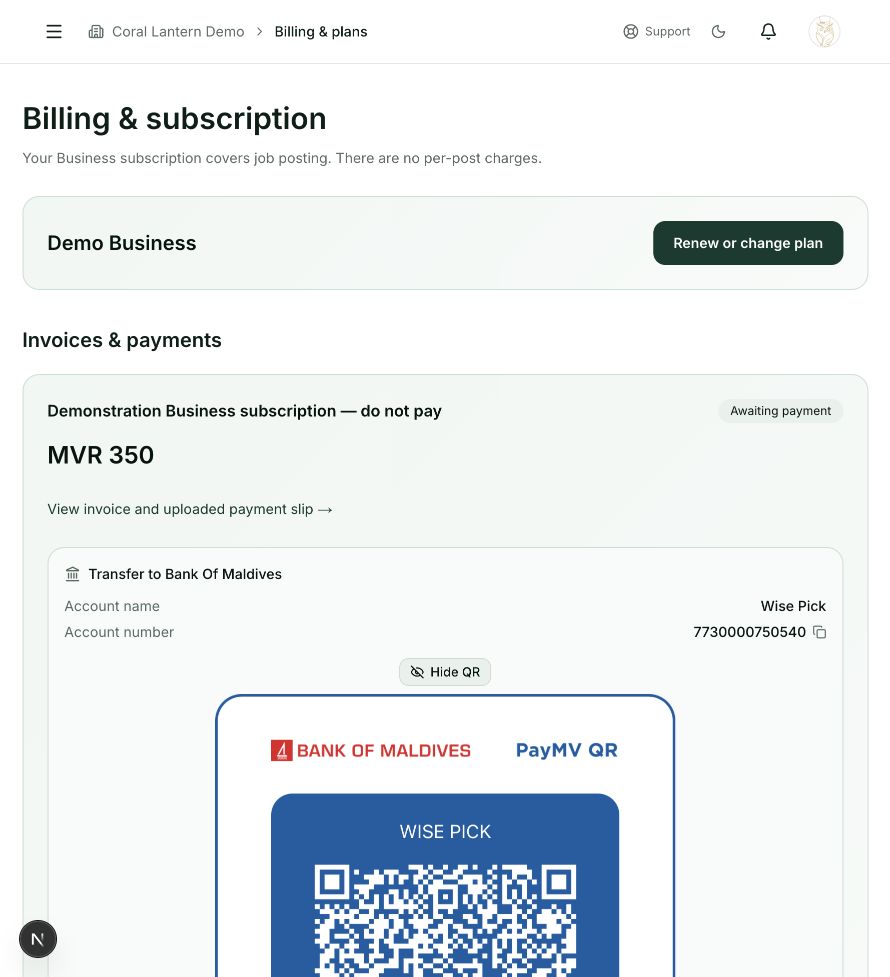
Billing & plans
Steps 1, 2 in this section. Where to find it: Business side menu → Billing & plans. This is an example of this page, not an additional task. Use the written instructions for the exact controls and the current details in your account.
This screenshot illustrates the named page and steps above. Example names and values may differ from your account. Follow the written instructions, especially for payments.
Screenshot 1 of 1: Billing & plans
Page / dialog · Steps 3–5
Invoice and payment details
Where to go: Billing & plans → Invoices & payments → Open the relevant invoice
- Step 3.
Select View invoice and uploaded payment slip.
- Step 4.
Check the amount, billing period and payment status.
- Step 5.
If a payment is rejected, read any explanation and contact support or upload the requested corrected slip.
Good to know
Pending verification means the receipt is awaiting review. It is different from a final Paid approval.