Messages & alerts
Send and read in-app messages
Use private text conversations about applications.
For: Signed-in account
Start here: Application or applicant contact card
Individual: My applications → Open application · Business: Candidates → Review candidate
Each section below names the page or dialog to use. Move to the next page only when the instructions say to.
Step-by-step instructions
Page / dialog · Step 1
Application or applicant contact card
Where to go: Individual: My applications → Open application · Business: Candidates → Review candidate
- Step 1.
Open an applicant and choose Message applicant, or open an available conversation from your application.
Page / dialog · Steps 2–5
Messages
Where to go: Side menu → Messages
Open Messages →- Step 2.
Select Messages in the side menu.
- Step 3.
Choose a contact from the conversation list.
- Step 4.
Type in the message box and press Send.
- Step 5.
Open new-message notifications to return to the conversation.
Relevant page screenshot
Example page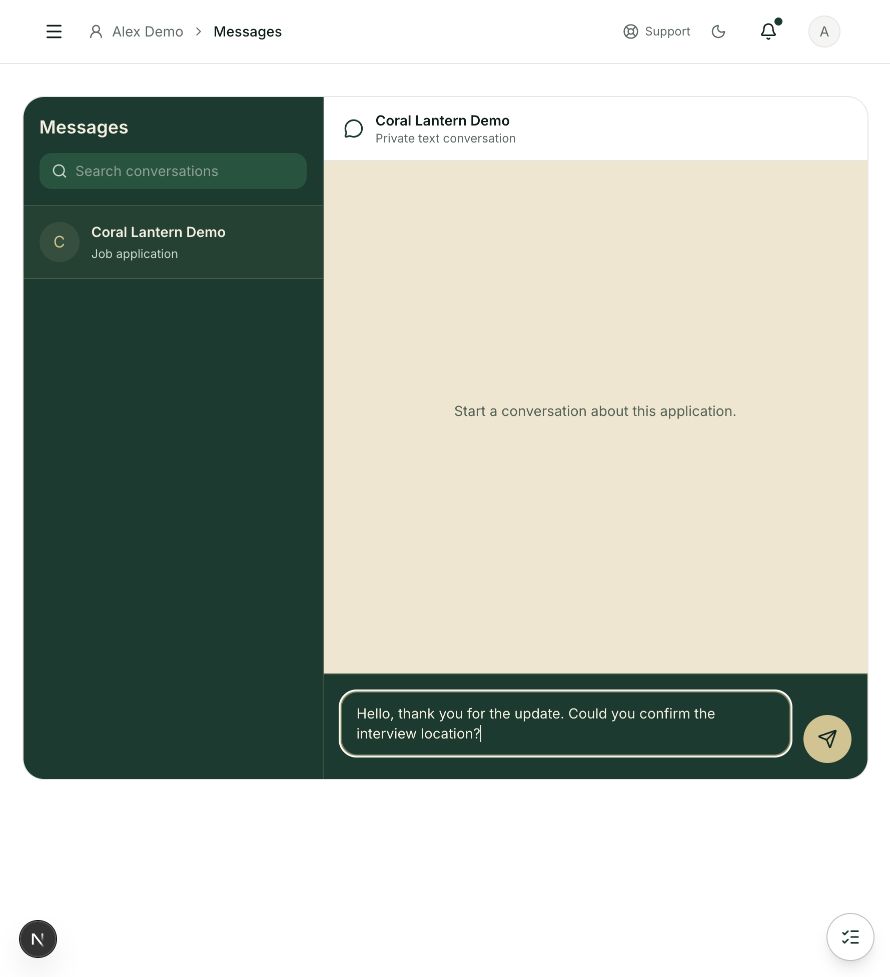
Messages
Steps 2, 3, 4 in this section. Where to find it: Side menu → Messages. This is an example of this page, not an additional task. Use the written instructions for the exact controls and the current details in your account.
This screenshot illustrates the named page and steps above. Example names and values may differ from your account. Follow the written instructions, especially for payments.
Screenshot 1 of 1: Messages
Good to know
Messages are text only. Avoid sending passwords, verification codes or unnecessary sensitive documents.