Messages & alerts
Read and clear notifications
Keep track of application and message updates.
For: Signed-in account
Start here: Notifications
Top bar → Bell icon
Each section below names the page or dialog to use. Move to the next page only when the instructions say to.
Step-by-step instructions
Page / dialog · Steps 1–4
Notifications
Where to go: Top bar → Bell icon
Open Notifications →- Step 1.
Select the bell icon, or open Notifications from your account menu.
- Step 2.
Choose a notification to view the related item.
- Step 3.
Use Mark read or Mark all read to clear unread indicators.
- Step 4.
Check the associated application or message if an action is needed.
Relevant page screenshot
Example page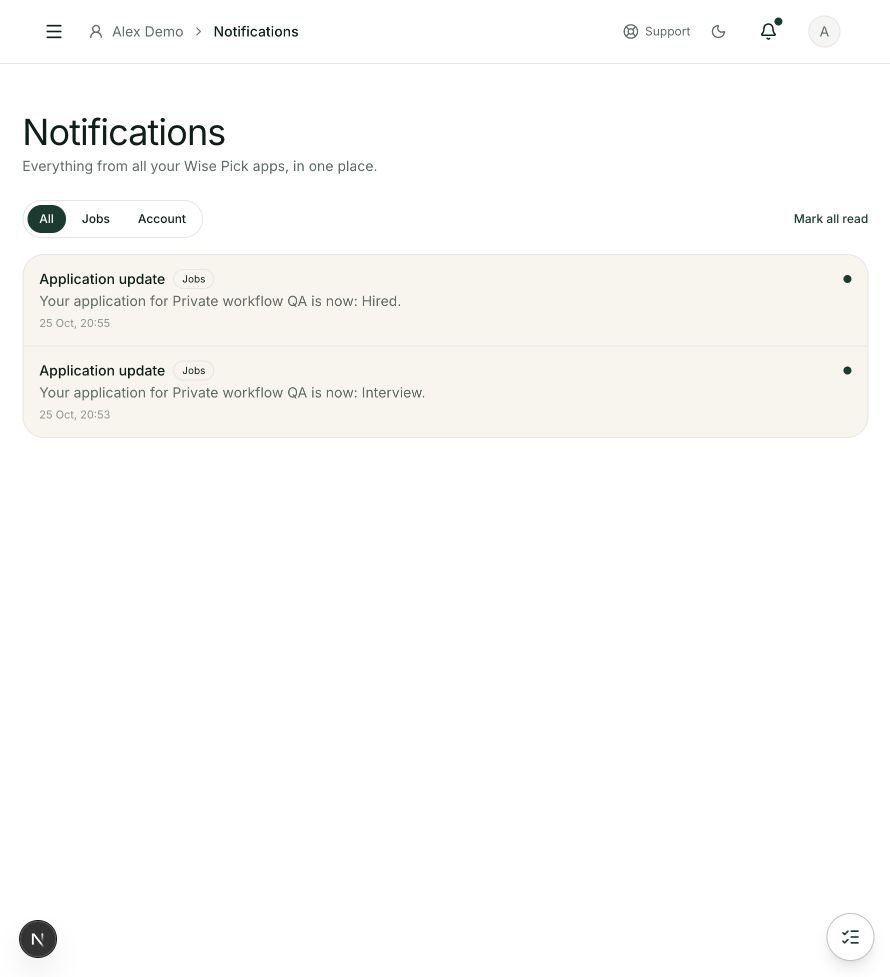
Notifications
Steps 1, 2, 3, 4 in this section. Where to find it: Top bar → Bell icon. This is an example of this page, not an additional task. Use the written instructions for the exact controls and the current details in your account.
This screenshot illustrates the named page and steps above. Example names and values may differ from your account. Follow the written instructions, especially for payments.
Screenshot 1 of 1: Notifications
Good to know
An email notification and an in-app notification are separate. Marking an item read does not undo its underlying status change.