Profiles & documents
Set up your public profile
Introduce yourself to employers with a complete and useful profile.
For: Individual account
Start here: Login
Public website → Log in
Each section below names the page or dialog to use. Move to the next page only when the instructions say to.
Step-by-step instructions
Page / dialog · Step 1
Login
Where to go: Public website → Log in
Open Login →- Step 1.
Sign in to your individual account.
Page / dialog · Steps 2–5
My profile & documents
Where to go: Individual side menu → My profile & documents
Open My profile & documents →- Step 2.
Open My profile & documents in the side menu.
- Step 3.
Enter your name, contact details, location and professional headline. Add an About section explaining your experience.
- Step 4.
Add relevant skills and portfolio items where available. Upload the documents you want to use for applications.
- Step 5.
Review the visibility options before saving. You control which optional information is public.
Relevant page screenshot
Example page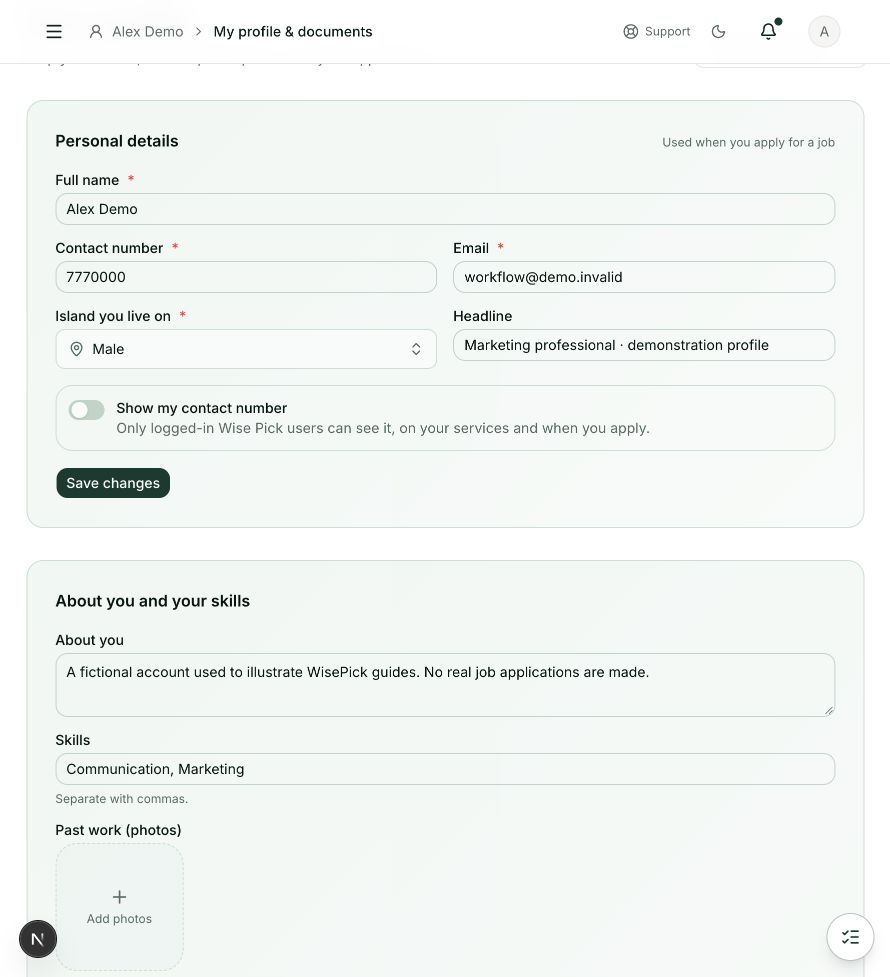
My profile & documents
Steps 2, 3, 4, 5 in this section. Where to find it: Individual side menu → My profile & documents. This is an example of this page, not an additional task. Use the written instructions for the exact controls and the current details in your account.
This screenshot illustrates the named page and steps above. Example names and values may differ from your account. Follow the written instructions, especially for payments.
Screenshot 1 of 1: My profile & documents
Page / dialog · Step 6
Your public profile
Where to go: Side menu → Public profile
- Step 6.
Open Public profile in the side menu to check what visitors will see.
Good to know
Uploading a document does not mean it should be public. Review each sharing option before saving.