Hiring & candidates
Review candidates and their documents
Find applicants across your company’s vacancies.
For: Business owner or authorised staff
Start here: Candidates
Business side menu → Team → Candidates
Each section below names the page or dialog to use. Move to the next page only when the instructions say to.
Step-by-step instructions
Page / dialog · Step 1
Candidates
Where to go: Business side menu → Team → Candidates
Open Candidates →- Step 1.
Open Candidates under Team, or open applicants from a job card.
Page / dialog · Steps 2–5
Applicant details
Where to go: Candidates → Review candidate, or Job openings → Job card → Applicants → Select applicant
Open Candidates →- Step 2.
Select a candidate to see their application.
- Step 3.
Read the profile, message and documents they chose to share.
- Step 4.
Use the contact card to message them in WisePick or use available contact options.
- Step 5.
Choose the next appropriate status when you are ready.
Relevant page screenshot
Example page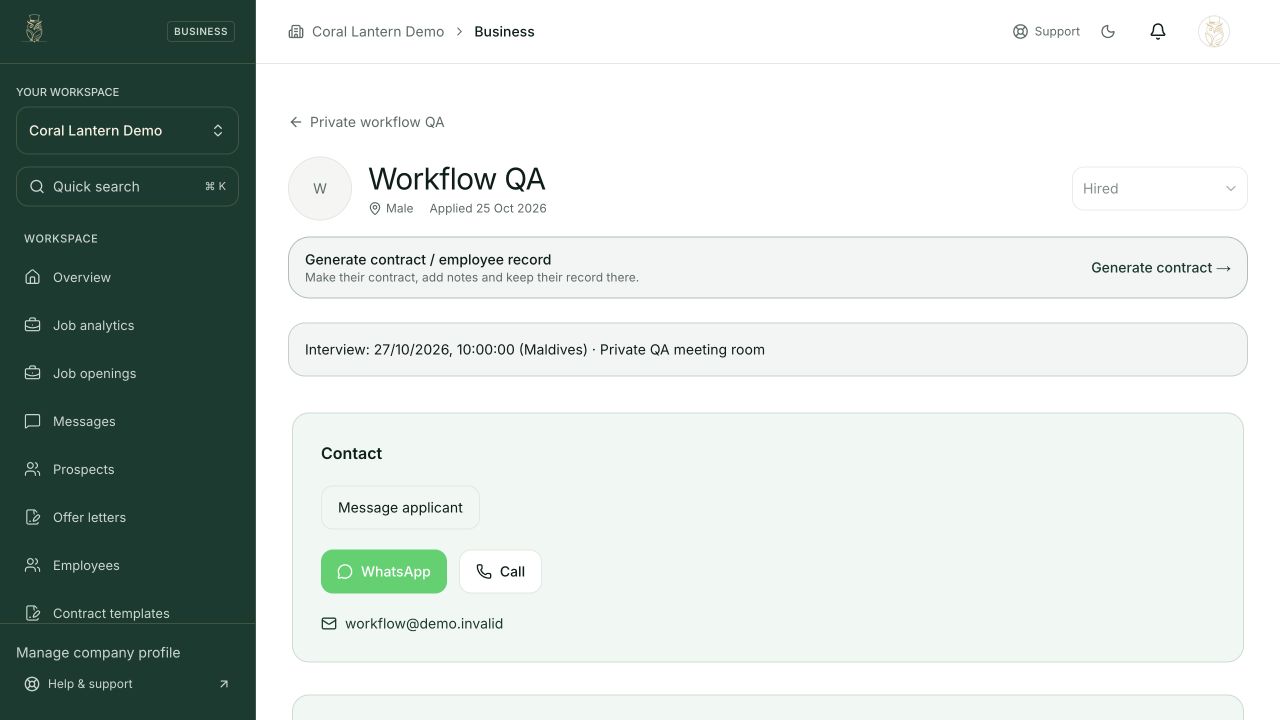
Applicant details
Steps 2, 3, 4 in this section. Where to find it: Candidates → Review candidate, or Job openings → Job card → Applicants → Select applicant. This is an example of this page, not an additional task. Use the written instructions for the exact controls and the current details in your account.
This screenshot illustrates the named page and steps above. Example names and values may differ from your account. Follow the written instructions, especially for payments.
Screenshot 1 of 1: Applicant details
Good to know
Only authorised company users should handle applicant information. Do not share documents outside the hiring process.