Hiring & candidates
Create a job post
Publish a clear vacancy with the details applicants need.
For: Business owner or authorised staff
Start here: Job openings
Business side menu → Job openings
Each section below names the page or dialog to use. Move to the next page only when the instructions say to.
Step-by-step instructions
Page / dialog · Step 1
Job openings
Where to go: Business side menu → Job openings
Open Job openings →- Step 1.
Open Job openings and select Post a job.
Page / dialog · Steps 2–6
Post a job
Where to go: Job openings → Post a job
Open Post a job →- Step 2.
Enter the required title, description, work location and application deadline.
- Step 3.
Choose a fixed salary, salary range or negotiable salary. Add optional benefits and allowances.
- Step 4.
Select the qualification requirements. Choose Other if you need to type a different requirement.
- Step 5.
Choose online, email or both application methods, and select the required documents.
- Step 6.
Review the post and publish it using your active Business subscription.
Relevant page screenshot
Example page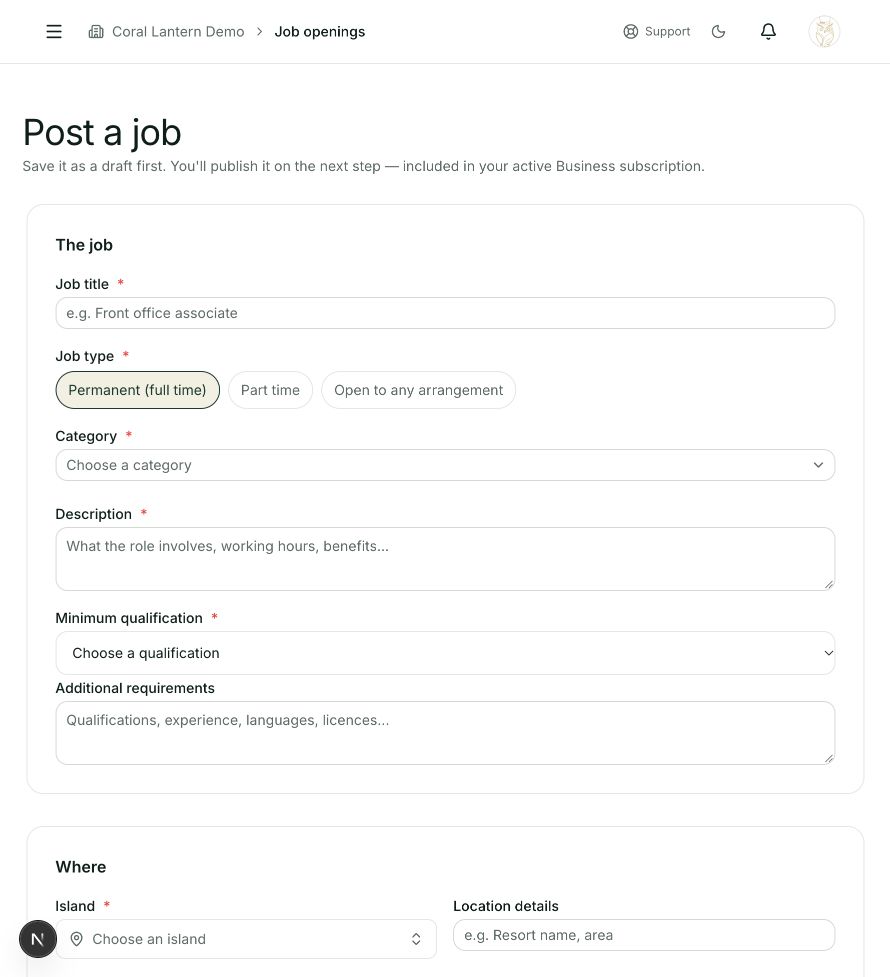
Post a job
Steps 2, 3, 4, 5, 6 in this section. Where to find it: Job openings → Post a job. This is an example of this page, not an additional task. Use the written instructions for the exact controls and the current details in your account.
This screenshot illustrates the named page and steps above. Example names and values may differ from your account. Follow the written instructions, especially for payments.
Screenshot 1 of 1: Post a job
Good to know
Creating new job posts requires Business access. Imported management trials cover existing imported jobs only.