Hiring & candidates
Edit, pause or close a job post
Keep vacancy information current and control applications.
For: Business owner or authorised staff
Start here: Job openings
Business side menu → Job openings
Each section below names the page or dialog to use. Move to the next page only when the instructions say to.
Step-by-step instructions
Page / dialog · Step 1
Job openings
Where to go: Business side menu → Job openings
Open Job openings →- Step 1.
Open Job openings and choose your job card.
Relevant page screenshot
Example page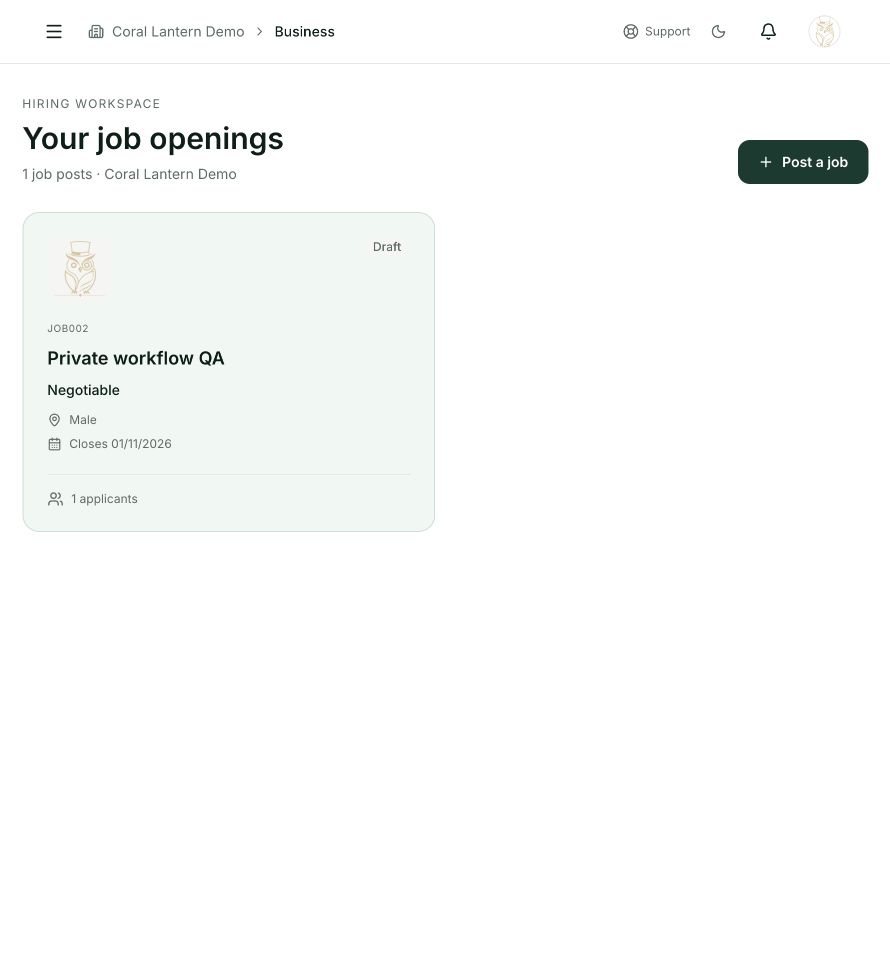
Job openings
Step 1 in this section. Where to find it: Business side menu → Job openings. This is an example of this page, not an additional task. Use the written instructions for the exact controls and the current details in your account.
This screenshot illustrates the named page and steps above. Example names and values may differ from your account. Follow the written instructions, especially for payments.
Screenshot 1 of 1: Job openings
Page / dialog · Steps 2–5
Manage job post
Where to go: Job openings → Choose your job card
- Step 2.
Use Edit to correct supported job details, then save.
- Step 3.
Use Pause if you need to stop accepting applications temporarily.
- Step 4.
Use the available resume or close action when appropriate.
- Step 5.
Review the closing date and status after saving.
Good to know
Expired or filled jobs stop accepting applications. Imported trial posts cannot be extended beyond the original advertised deadline without a paid plan.