Finding & applying
Apply to an email-only job
Prepare an application in your own email app.
For: Individual account
Start here: Email-only job details
Jobs → Choose a listing marked Email only
Each section below names the page or dialog to use. Move to the next page only when the instructions say to.
Step-by-step instructions
Page / dialog · Step 1
Email-only job details
Where to go: Jobs → Choose a listing marked Email only
Browse jobs →- Step 1.
Open the job and choose the email application option.
Page / dialog · Steps 2–3
Email application draft
Where to go: Email-only job details → Prepare your application / email option
- Step 2.
Review the short draft message, your name and your WisePick profile link.
- Step 3.
Select any document links you want to include. Check that the employer can open those links.
Relevant page screenshot
Example page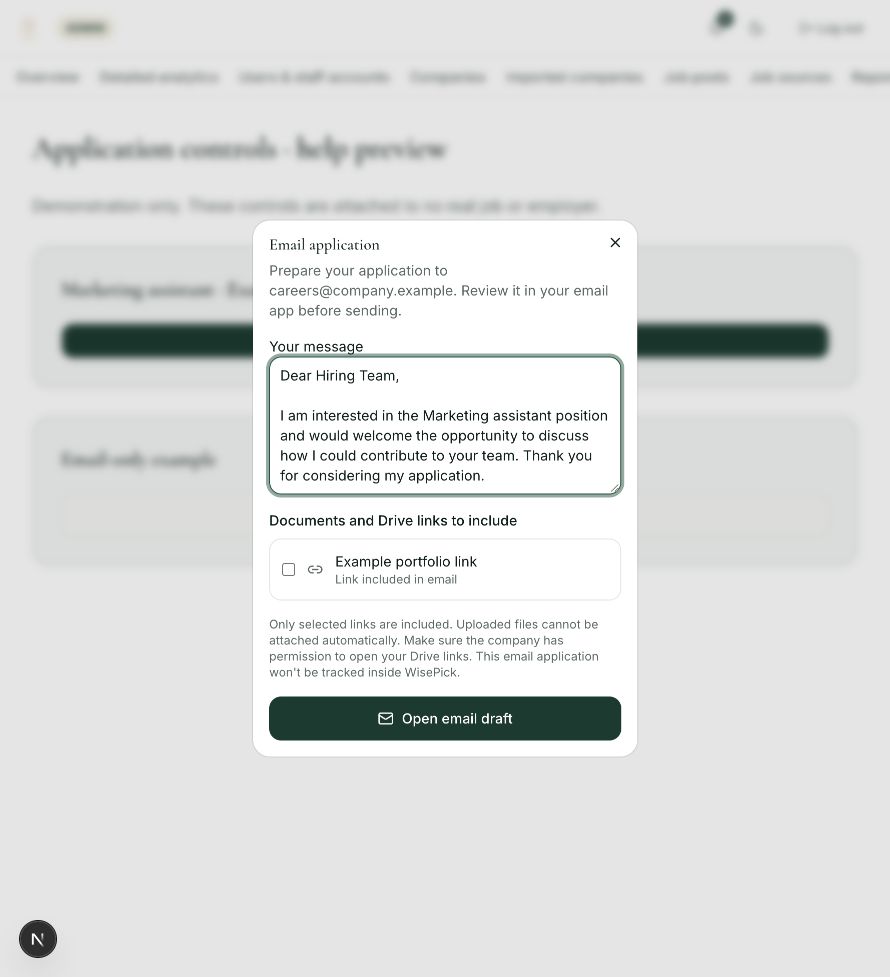
Email application draft
Steps 2, 3 in this section. Where to find it: Email-only job details → Prepare your application / email option. This is an example of this page, not an additional task. Use the written instructions for the exact controls and the current details in your account.
This screenshot illustrates the named page and steps above. Example names and values may differ from your account. Follow the written instructions, especially for payments.
Screenshot 1 of 1: Email application draft
Outside WisePick · Steps 4–5
Your email app (outside WisePick)
Where to go: Email application draft → Open in your email app
- Step 4.
Open the draft in your email app.
- Step 5.
Review the recipient, subject, message and attachments. Press Send in your email app when you are ready.
Good to know
Opening a draft does not send an email. Email-only applications may not have a tracked status in My applications.