Contracts & team
Create a contract or offer-letter template
Build a reusable document with your company wording.
For: Business owner or authorised staff
Start here: Contract templates
Business side menu → Contract templates
Each section below names the page or dialog to use. Move to the next page only when the instructions say to.
Step-by-step instructions
Page / dialog · Step 1
Contract templates
Where to go: Business side menu → Contract templates
Open Contract templates →- Step 1.
Open Contract templates.
Page / dialog · Steps 2–5
Contract template editor
Where to go: Contract templates → New template, or select an existing template
Open Contract templates →- Step 2.
Create a new template and enter a clear name and document title.
- Step 3.
Fill in the section boxes, such as the role, pay, working hours, probation and notice terms.
- Step 4.
Use Generate template if you want a starting draft, then review and edit its wording.
- Step 5.
Save the template.
Relevant page screenshot
Example page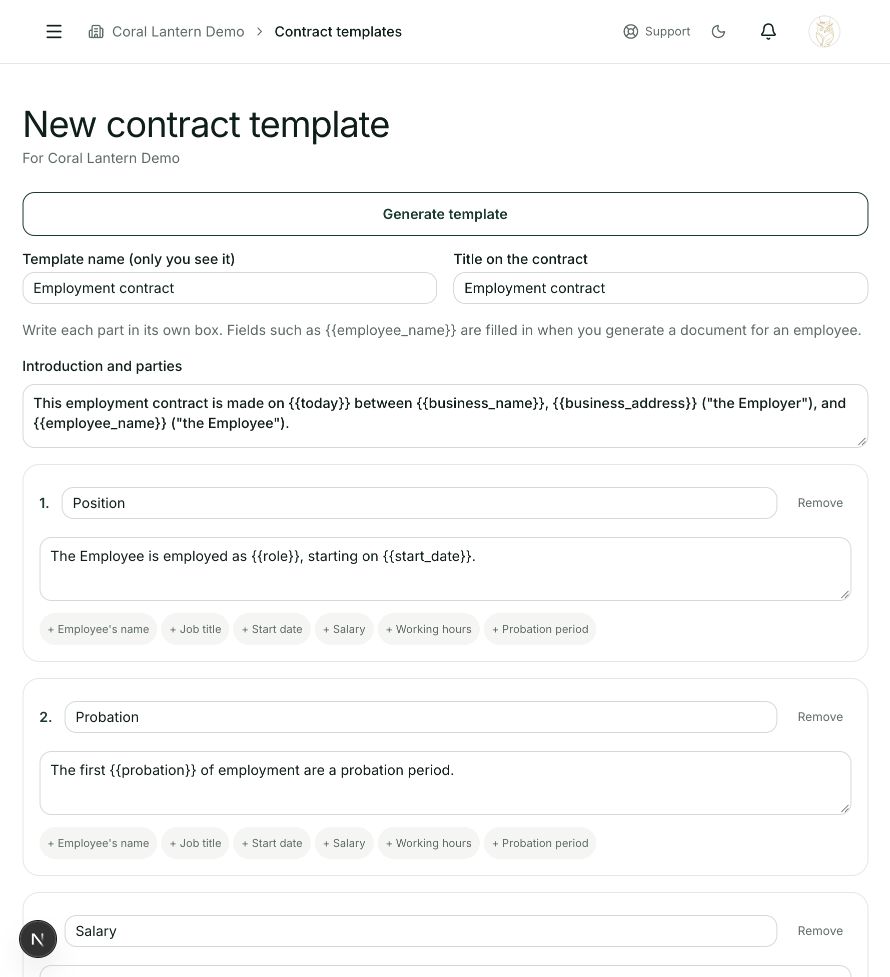
Contract template editor
Steps 2, 3, 4, 5 in this section. Where to find it: Contract templates → New template, or select an existing template. This is an example of this page, not an additional task. Use the written instructions for the exact controls and the current details in your account.
This screenshot illustrates the named page and steps above. Example names and values may differ from your account. Follow the written instructions, especially for payments.
Screenshot 1 of 1: Contract template editor
Page / dialog · Step 6
Generate document dialog
Where to go: Employee record → Download / generate document → Choose template
- Step 6.
Choose it later when generating a document for a candidate or employee.
Good to know
A generated draft needs your review. Make sure the final terms match your agreement and applicable requirements.