Contracts & team
Manage employee records
Keep role, employment and generated documents in one place.
For: Business owner or authorised staff
Start here: Employees
Business side menu → Employees
Each section below names the page or dialog to use. Move to the next page only when the instructions say to.
Step-by-step instructions
Page / dialog · Step 1
Employees
Where to go: Business side menu → Employees
Open Employees →- Step 1.
Open Employees.
Page / dialog · Steps 2–5
Employee record
Where to go: Employees → Choose an employee
Open Employees →- Step 2.
Choose the employee you want to manage.
- Step 3.
Review their role, start date and available employment details.
- Step 4.
Use the contracts section to generate or download documents.
- Step 5.
Save changes to any notes or employment fields you edit.
Relevant page screenshot
Example page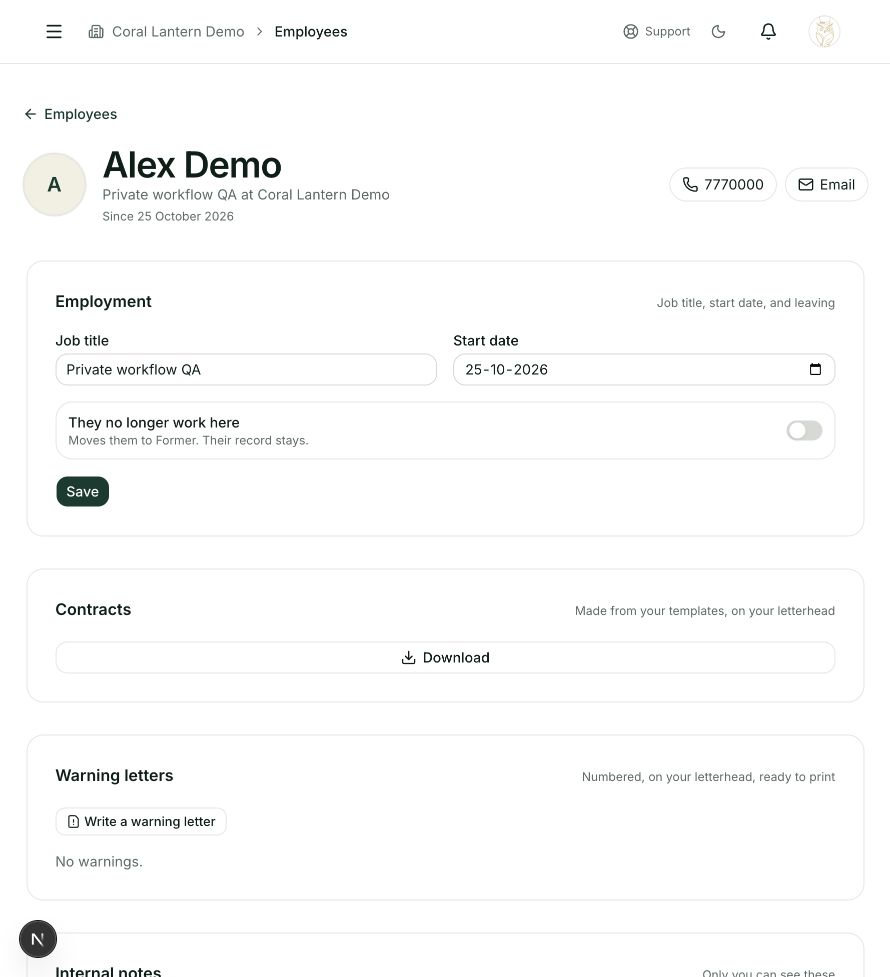
Employee record
Steps 2, 3, 4, 5 in this section. Where to find it: Employees → Choose an employee. This is an example of this page, not an additional task. Use the written instructions for the exact controls and the current details in your account.
This screenshot illustrates the named page and steps above. Example names and values may differ from your account. Follow the written instructions, especially for payments.
Screenshot 1 of 1: Employee record
Good to know
Employee records are private to authorised company users. Review information carefully before updating it.