Contracts & team
Upload a digital signature or company stamp
Add supported transparent artwork to your template.
For: Business owner or authorised staff
Start here: Contract template editor
Contract templates → New template, or select an existing template
Each section below names the page or dialog to use. Move to the next page only when the instructions say to.
Step-by-step instructions
Page / dialog · Steps 1–5
Contract template editor
Where to go: Contract templates → New template, or select an existing template
Open Contract templates →- Step 1.
Open the contract template editor.
- Step 2.
Find the signature or stamp upload control.
- Step 3.
Select a PNG image with a transparent background.
- Step 4.
Wait while the app checks and reduces oversized artwork where needed.
- Step 5.
Preview the document and save the template.
Relevant page screenshot
Example page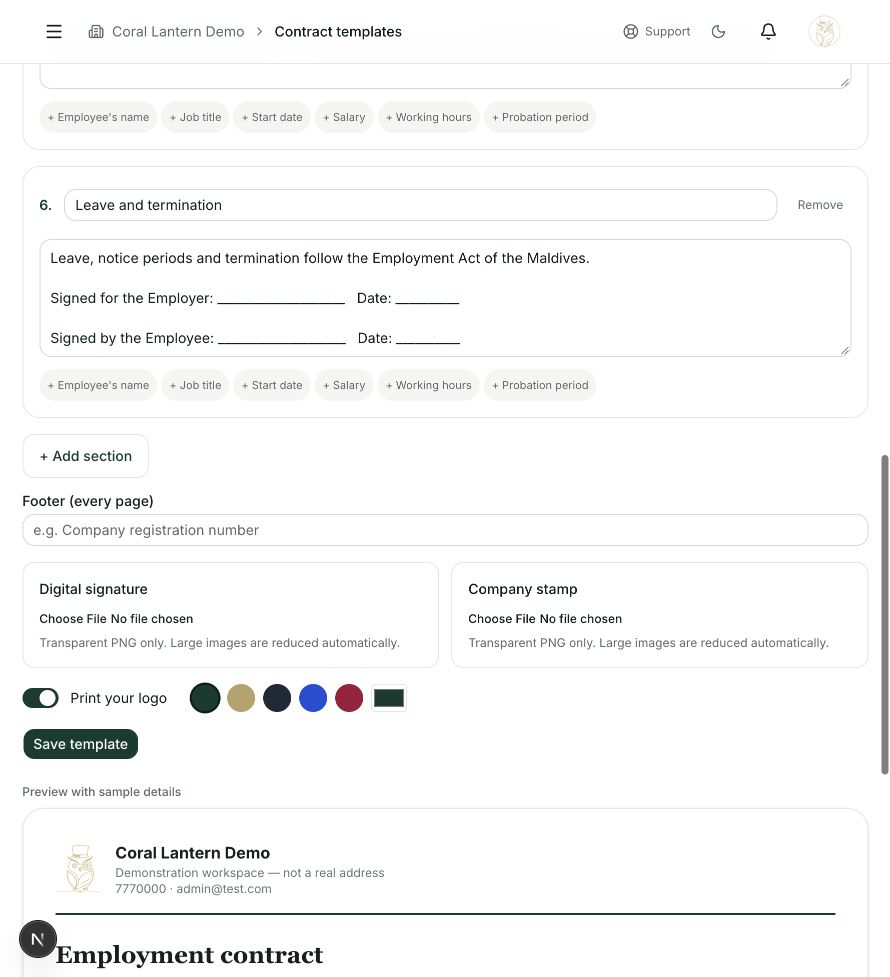
Contract template editor
Steps 1, 2, 3, 4, 5 in this section. Where to find it: Contract templates → New template, or select an existing template. This is an example of this page, not an additional task. Use the written instructions for the exact controls and the current details in your account.
This screenshot illustrates the named page and steps above. Example names and values may differ from your account. Follow the written instructions, especially for payments.
Screenshot 1 of 1: Contract template editor
Good to know
Only use a signature or stamp you are authorised to apply. A scanned image with a solid background may be rejected.